Setup wizard
The first time you open HourBank, a short wizard asks a few questions so the first retainer is ready in a few minutes. Every answer can be changed later. You can reopen the wizard from the dashboard with the Setup wizard button.
Step 1: How should time be counted?
These are the defaults for every retainer. You can change them for one client later.
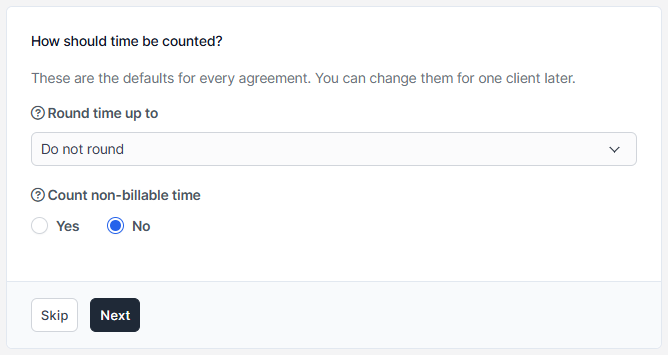
- Round time up to
- Each time entry is rounded up to this many minutes before it is counted. With 15, a 7 minute entry counts as 15 minutes. Choose Do not round to count exact minutes.
- Count non-billable time
- When this is off, time on tasks marked not billable is not taken from the client's hours.
- Usage alerts at
- The percentages of the hours used at which emails are sent, for example
75,90,100.
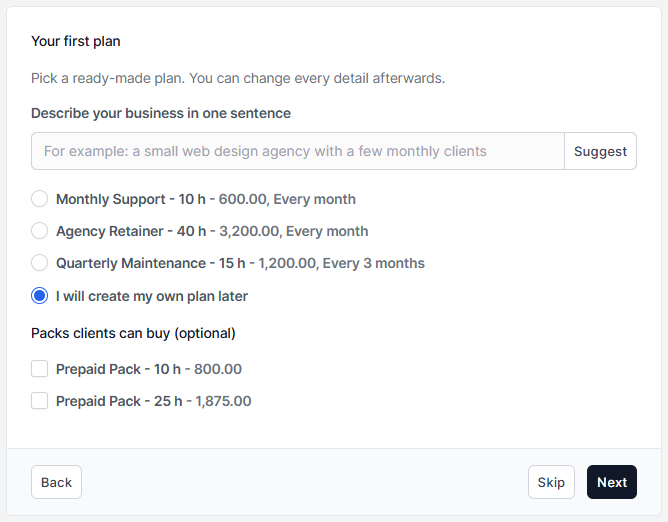
Step 2: Your first plan
Pick a ready-made plan, such as Monthly Support 10 hours or Agency Retainer 40 hours. You can change every detail afterwards. If you would rather start from nothing, choose I will create my own plan later. You can also pick packs that clients can buy.
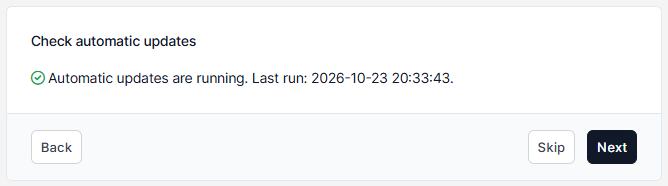
Step 3: Check automatic updates
HourBank closes billing cycles and sends alerts by itself, but Perfex has to wake it up. This step shows whether Perfex's scheduled task has run recently and, if not, the command to add in your hosting control panel. The next page, Automatic updates, explains it in plain words.
Step 4: AI features (optional)
AI can sort time into work categories, check the scope and draft summaries. Nothing it writes reaches a client without your approval. It is off for now. You can switch it on at any time in the HourBank settings. See AI features.
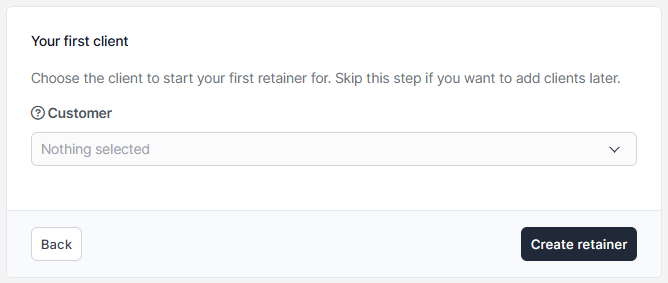
Step 5: Your first client
Choose the client to start your first retainer for. Click Create retainer and it is running: the first billing cycle opens at once. Skip this step if you want to add clients later.
You can leave the wizard at any time. Your answers up to that point are saved.