Dashboard and reports
The dashboard
HourBank, Dashboard is the page to open each morning. It answers three questions: how are we doing this month, who needs attention, and is everything working.
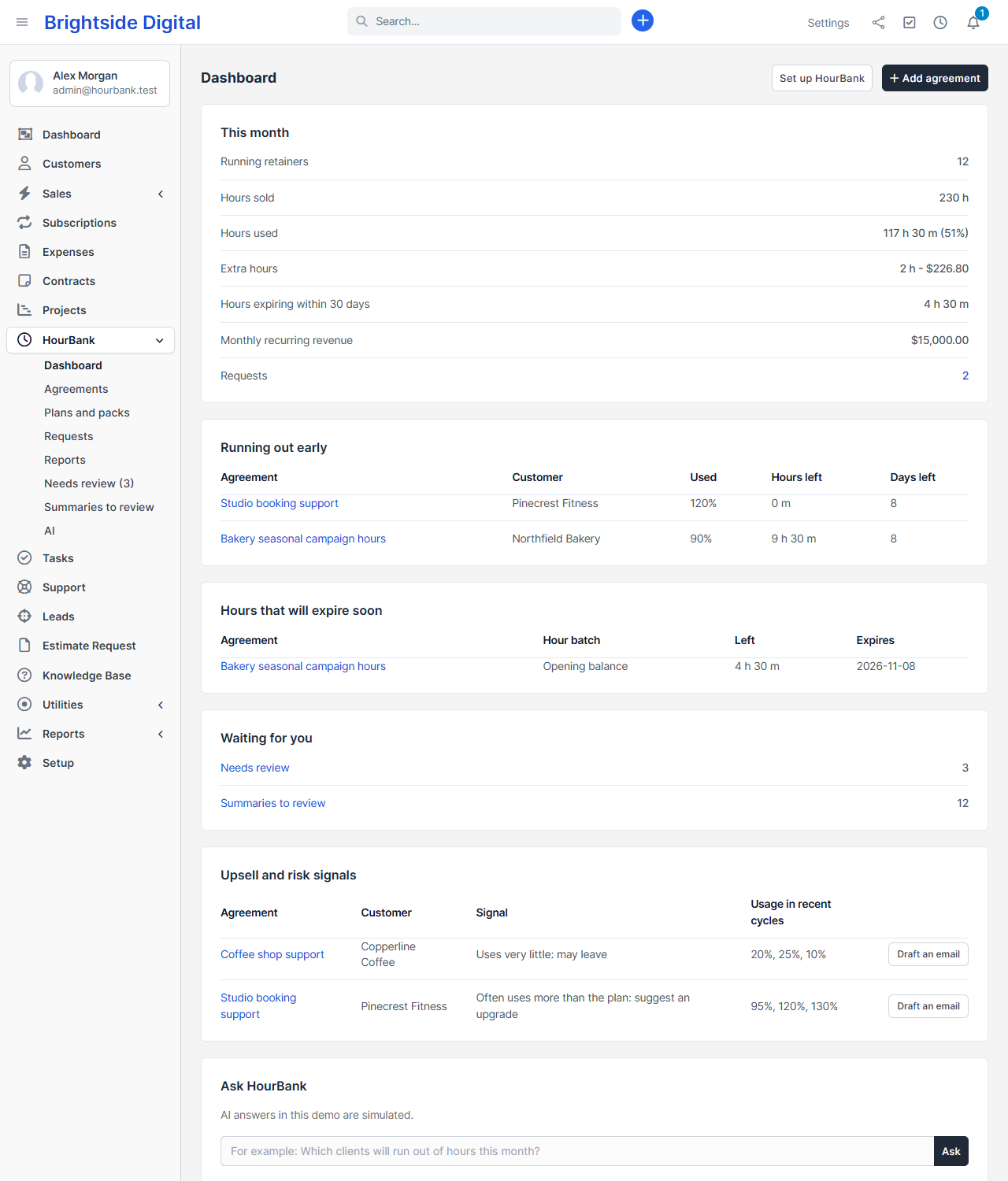
- This month
- Running retainers, hours sold, hours used (with the percentage), extra hours, hours expiring within 30 days, monthly recurring revenue, and the number of open requests.
- Running out early
- Retainers that have used 90% of their hours with more than a week of the billing cycle left. A good moment to call the client, or offer a pack.
- Hours that will expire soon
- Carried-over, opening and pack hours that expire in the next 30 days.
- Waiting for you
- Things that need a decision, such as entries held for review or summaries to approve. It only appears when there is something to do.
- Health check
- Whether the automatic updates are running, when hours were last brought up to date, and whether the time zones match. It also has the Sync hours now button.
A small HourBank block also appears on Perfex's own dashboard, for everyone who has permission to view HourBank. Move or hide it like any other Perfex dashboard block.
The list of agreements
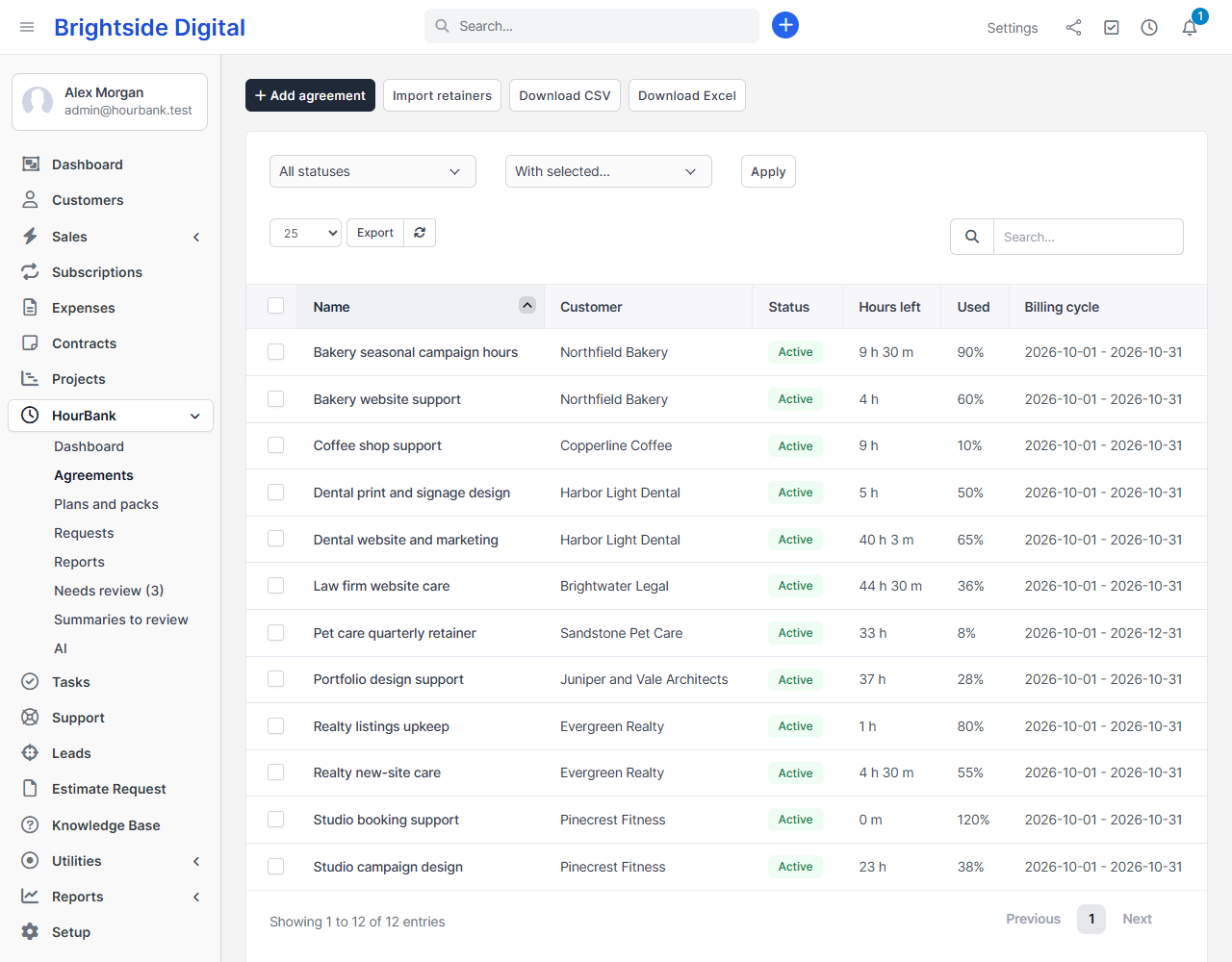
HourBank, Agreements shows every agreement with its status, hours left, usage and current billing cycle. Filter by status, search, sort, and export the list. Tick agreements and use With selected to pause, resume or email a statement to several at once.
On customers and projects
- On a customer's page, the Retainers tab shows that client's agreements and their hours left, with a button to add one.
- On a project's page, the Retainers tab shows which agreement covers it, or tells you that no retainer covers it.
Reports
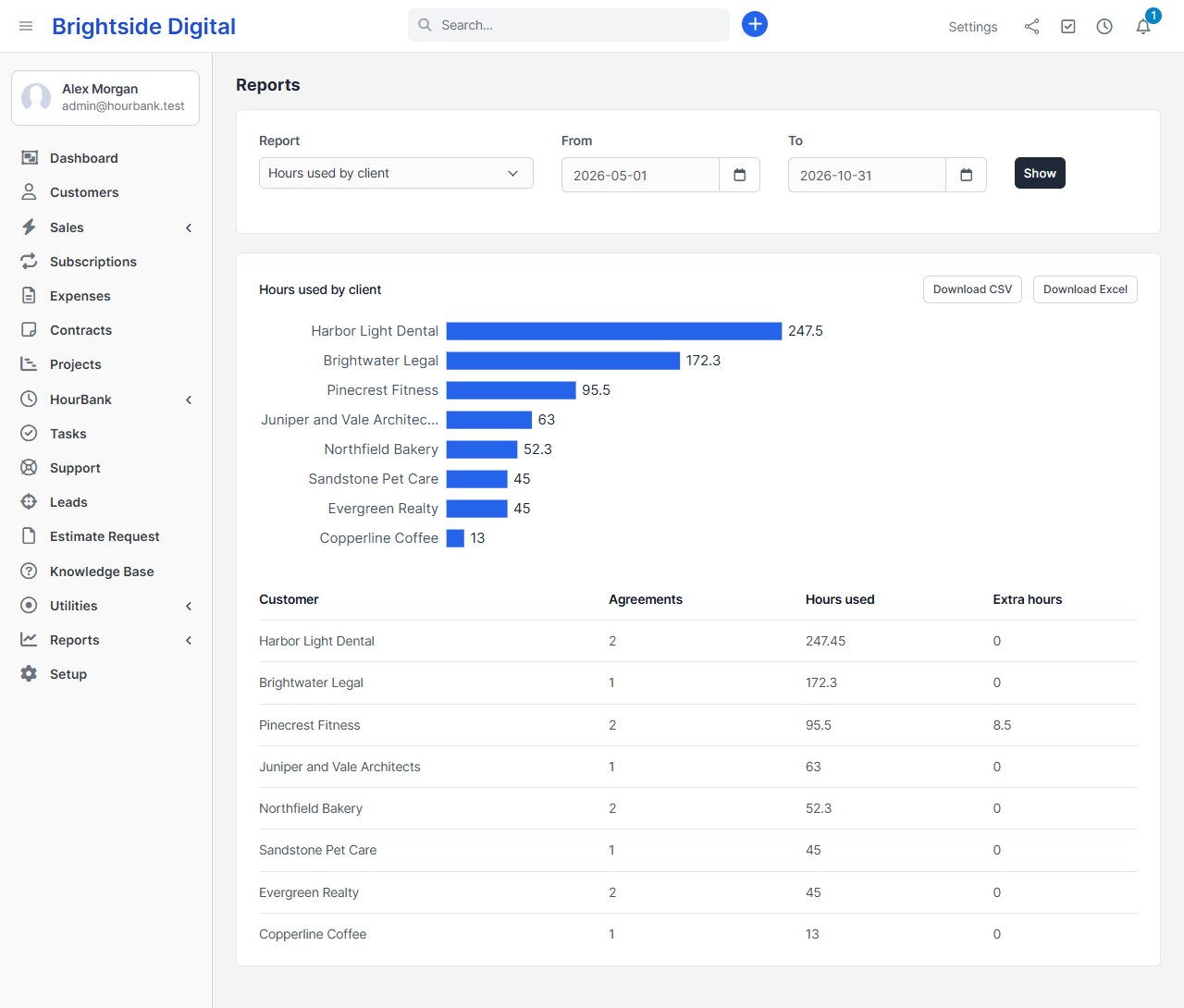
HourBank, Reports has a report for each question you are likely to ask. Pick a report and a date range, click Show, then use Download CSV or Download Excel to take the numbers with you.
| Report | It shows |
|---|---|
| Hours used by client | Hours and extra hours per client. |
| Hours used by staff member | Who spent the retainer hours. |
| Hours used by billing cycle | How use changes cycle by cycle. |
| Hours by type of work | Support, design, development and so on. Needs the AI work categories switched on. |
| Expired hours | Hours that expired unused, so you can see what clients did not use. |
| Extra-hours invoices | What was billed for extra hours. |
| Renewals coming up | Agreements that renew in the near future. |
| Hours clients still hold | Unused hours clients can still use. This is work you still owe. |
Staff who only have View own permission see only the agreements they manage.
When you open a CSV in a spreadsheet and numbers look odd, set the file's encoding to UTF-8. Excel files open normally.
Notes and activity
Each agreement has a timeline of what happened: created, started, paused, a cycle closed, an invoice created, a pack sold, a plan changed. Your team can add notes there for each other. Clients never see notes or the timeline.