AI features
Everything in HourBank works without AI. The AI features add insight, nothing more: nothing written by AI reaches a client without your approval, and AI never changes the hours by itself, except that you can choose to hold entries that look outside the retainer.
AI is off until you switch it on. While it is off, nothing is read, sent or stored, and every AI screen is hidden.
Switching it on
Open HourBank, AI (if you do not see it, you need the Use AI features permission). Tick Turn on AI features, choose a classifier, and choose which features you want. Each one can be switched on or off by itself.
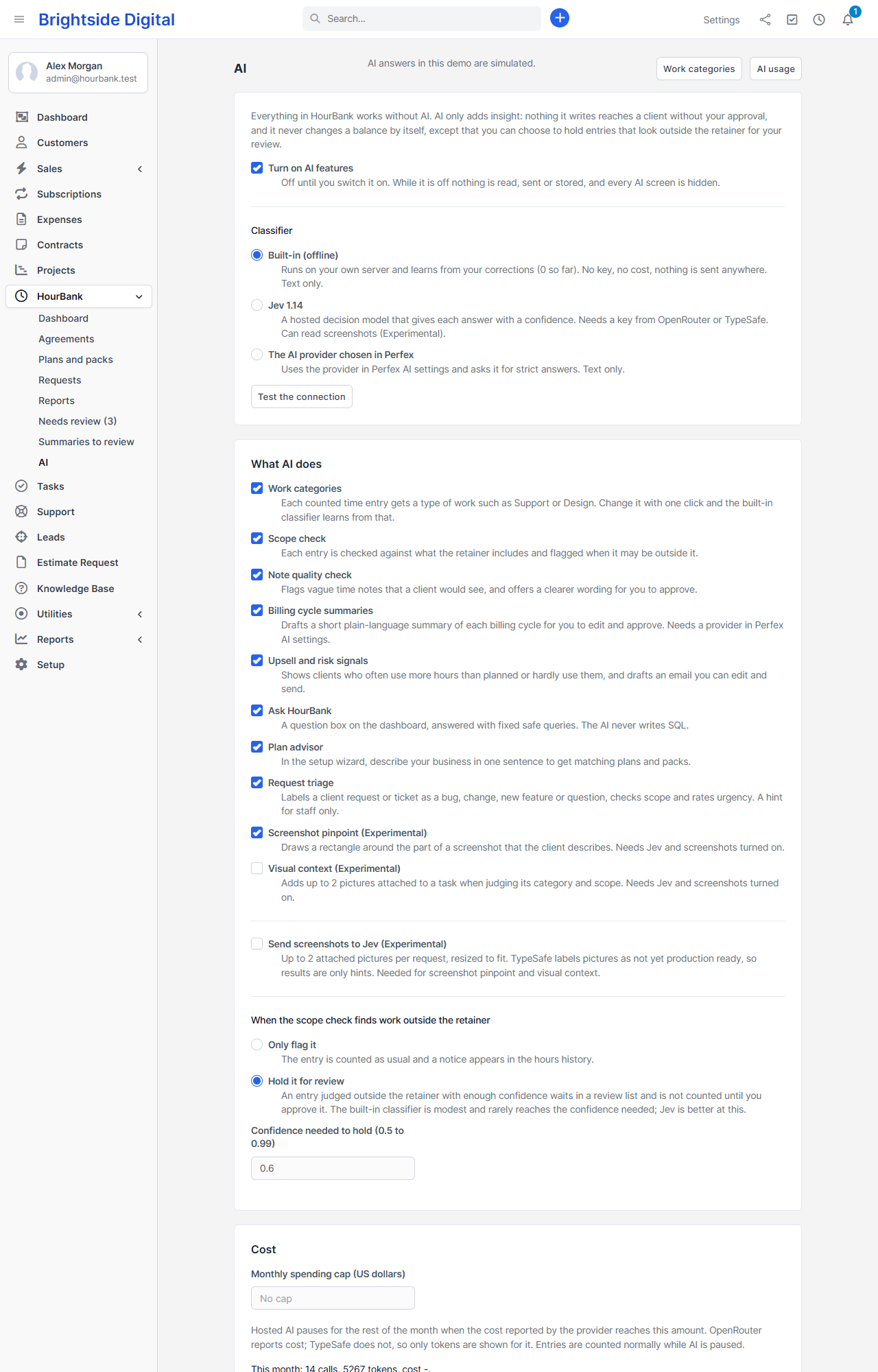
Choosing a classifier
| Classifier | What it is |
|---|---|
| Built-in (offline) | The default. It runs on your own server, learns from your corrections, needs no key and costs nothing. It sends nothing anywhere and only reads text. It is modest: it suggests, you correct. |
| Jev 1.14 | A hosted decision model that gives each answer with a confidence. You need a key from OpenRouter (open sign-up) or from TypeSafe (existing accounts). It can also read screenshots, marked as Experimental. |
| The AI provider chosen in Perfex | Uses the AI provider set in Perfex's own AI settings and asks it for strict answers. Text only. |
For Jev, choose the service (OpenRouter or TypeSafe), enter the key, save, and press Test the connection. The key is stored encrypted and is never shown again. It is removed when you change the service or address. Leave the model and server address empty to use the defaults.
A separate part, the writer, writes summaries, rewrites notes and drafts emails. It uses the provider you set up in Perfex under Setup, Settings, AI. Without one, the writing features stay hidden.
What AI does
- Work categories
- Each counted time entry is filed under a type of work such as Support, Design or Bug fix. You can change one with a click in the hours history and the built-in classifier learns from it. Edit the list under HourBank, AI, Work categories. Categories show on statements, in the client area and in reports.
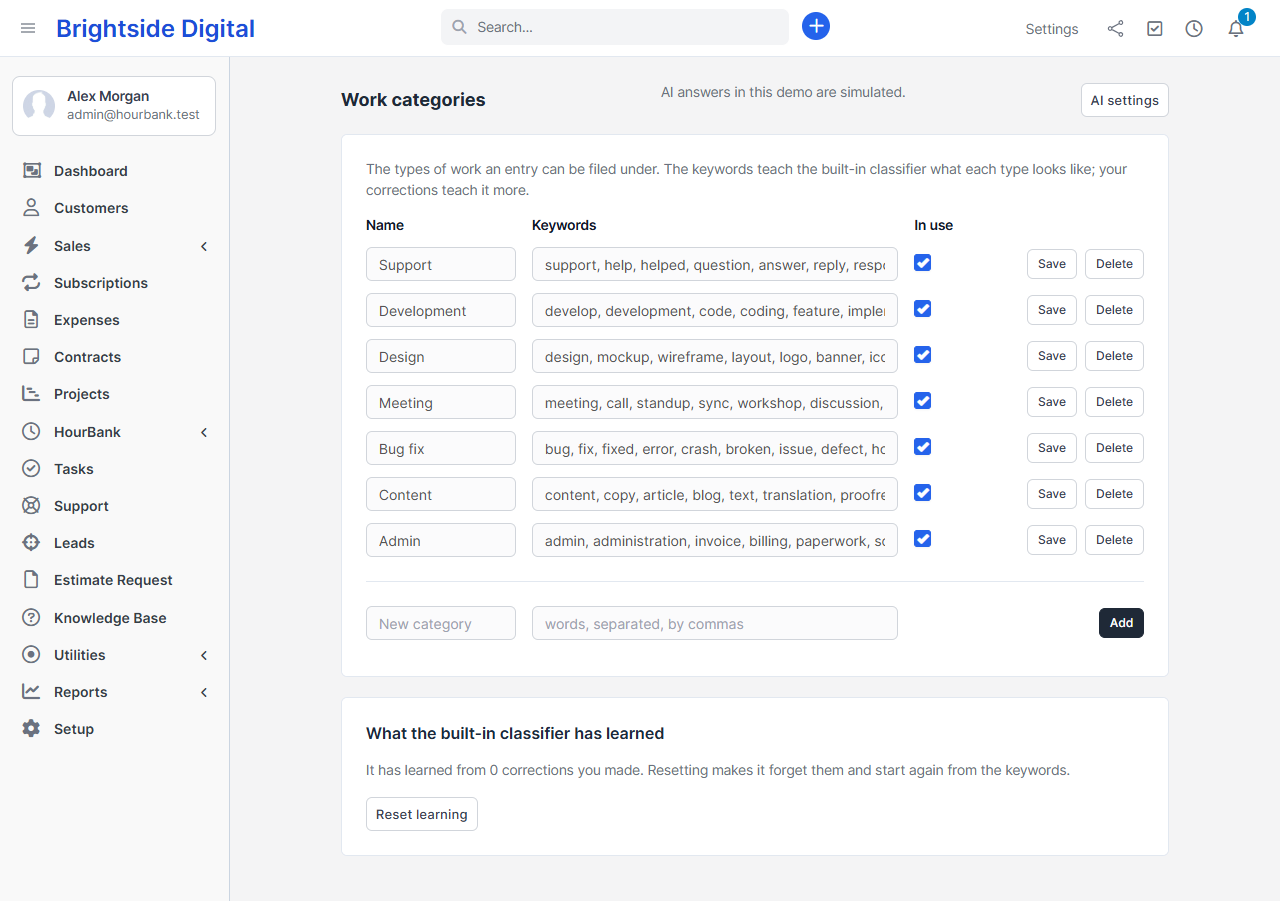
Work categories and the keywords that teach the built-in classifier. - Scope check
- Every entry is compared with the agreement's What is included text. If it may be outside the retainer, a notice appears in the hours history. In Only flag it mode the entry is counted as usual. In Hold it for review mode, an entry judged outside with enough confidence waits in Needs review and is not counted until you approve it.
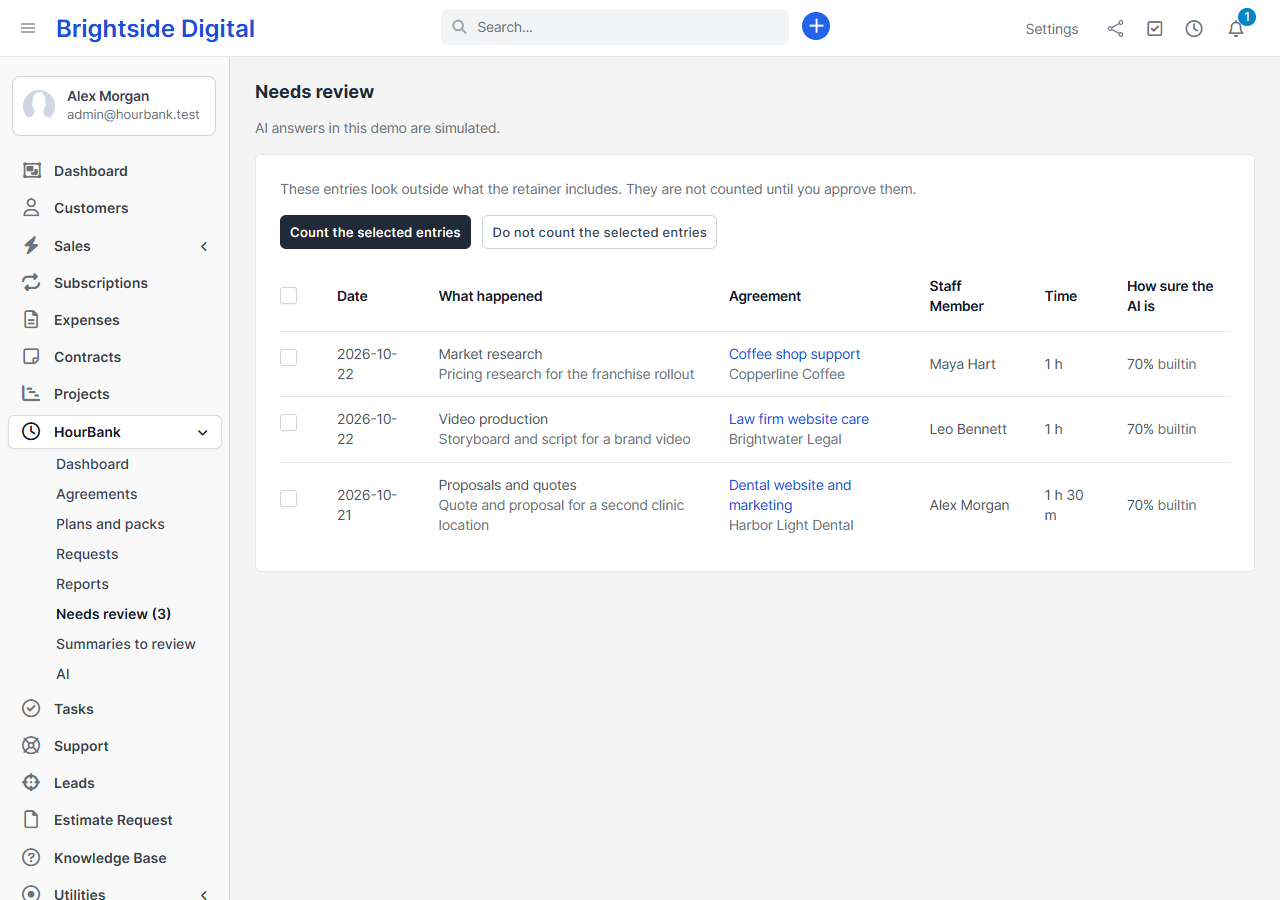
Needs review: tick entries and count or reject them. - Note quality check
- Flags vague time notes that a client would see and offers a clearer wording for you to approve with Rewrite for client.
- Billing cycle summaries
- When a cycle closes, a short plain-language summary of the work is drafted. It appears under Summaries to review. Edit it and approve it: only then does the client see it, on the statement, in the client area and in the
{hourbank_ai_summary}merge field.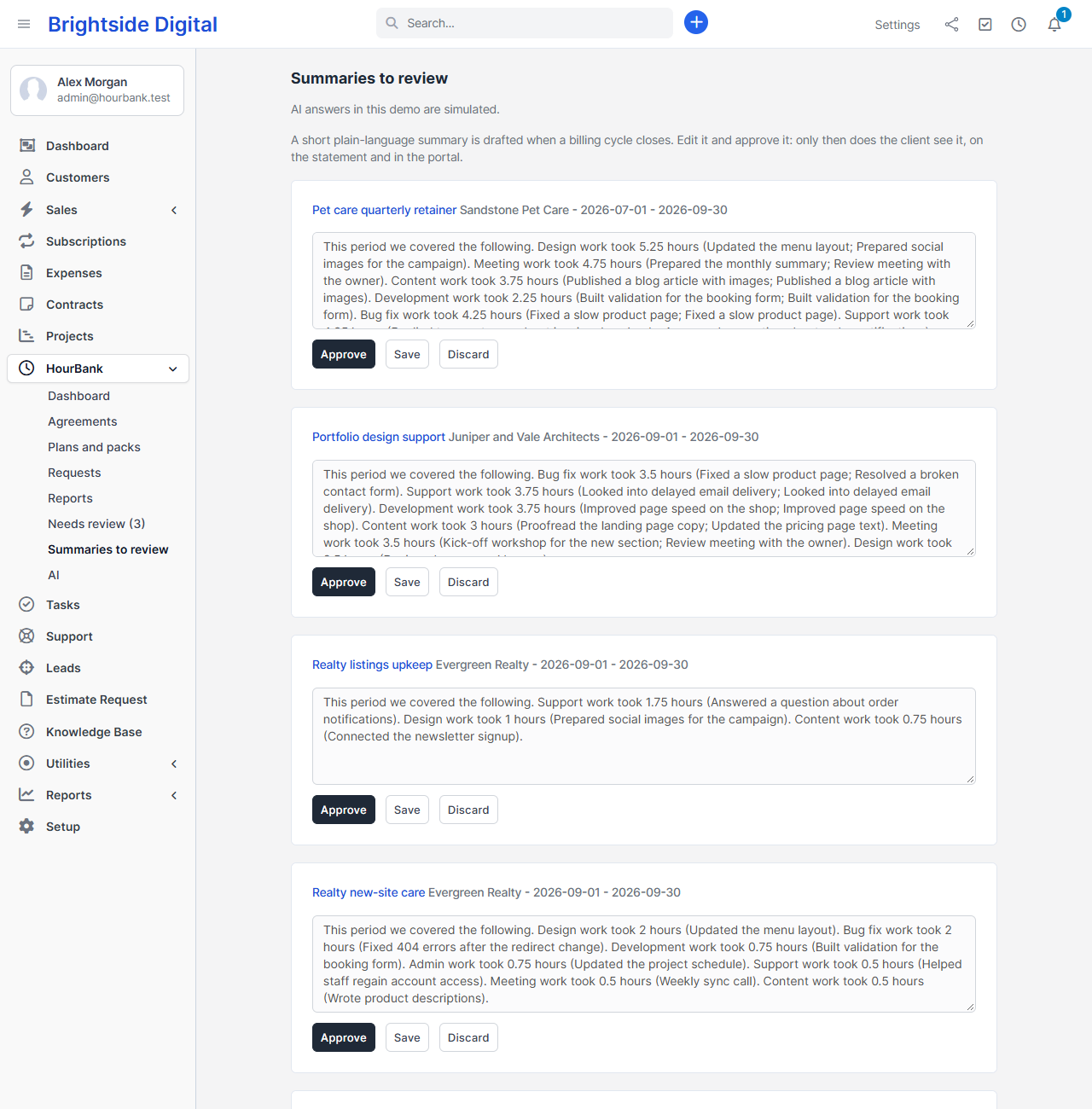
Summaries to review. - Upsell and risk signals
- Plain rules, not AI: a client who used 110% or more in two of the last three cycles may need a bigger plan, and a client who used 40% or less for three cycles may be about to leave. For each signal you can draft an email, edit it and send it.
- Ask HourBank
- A question box on the dashboard. It understands twelve kinds of question, for example Which clients will run out of hours this month?, How many hours does Acme have left?, Which hours expire soon? The answers come from fixed, safe queries. The AI never writes database commands, and a question it cannot answer gets a friendly list of what to ask instead.
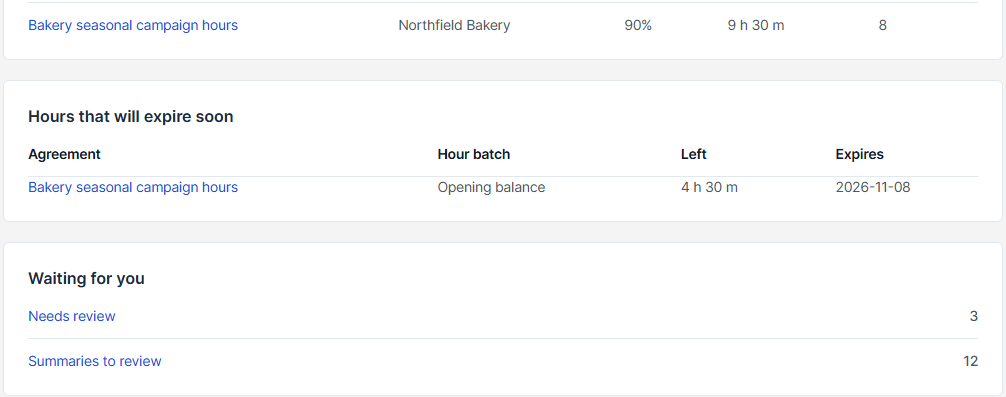
Ask HourBank answers with a table. - Plan advisor
- In the setup wizard, describe your business in one sentence to get matching plans and packs.
- Request triage
- A client's request for more hours, or a new ticket from a client with a retainer, is labelled as a bug, change request, new feature or question, checked against the scope, and rated for urgency. It is a hint for staff.
- Screenshot pinpoint and visual context (Experimental)
- With Jev and Send screenshots to Jev switched on, a screenshot a client attaches to a request can be read. HourBank draws a plain rectangle around the part the client describes and shows it to staff with a Not right button. The original picture is never changed. Because Jev's image features are marked experimental by its maker, treat the result as a hint.
What is sent
Only when a hosted engine is chosen, and only for the features that are on:
- The task name, the time note and the project name of an entry.
- The list of work categories and the text of What is included.
- The text of a client request or ticket and, only if you switch on screenshots, up to two pictures.
- The question typed in Ask HourBank, and for summaries the work lines of one billing cycle: category, hours and note.
Never sent: client contact details, invoice amounts, or any other files. The built-in classifier sends nothing.
When the AI service is slow or down
Time is always counted normally. A slow or failing hosted service never delays or blocks the hours. Answers are fetched in the background by Perfex's scheduled task. If the service does not answer after three tries, the built-in classifier answers instead and the screen says so.
Cost and usage
HourBank, AI, AI usage lists the calls made, tokens used and, where the provider reports it, the cost. You can set a monthly spending cap. When it is reached, hosted AI pauses for the rest of the month. Time keeps being counted normally while AI is paused.