Client portal
Clients see their hours in the Perfex client area. Nothing needs to be switched on: when a client has an agreement, a Retainers item appears in their menu. Staff do not have to answer "how many hours do I have left?" any more.
The list of retainers
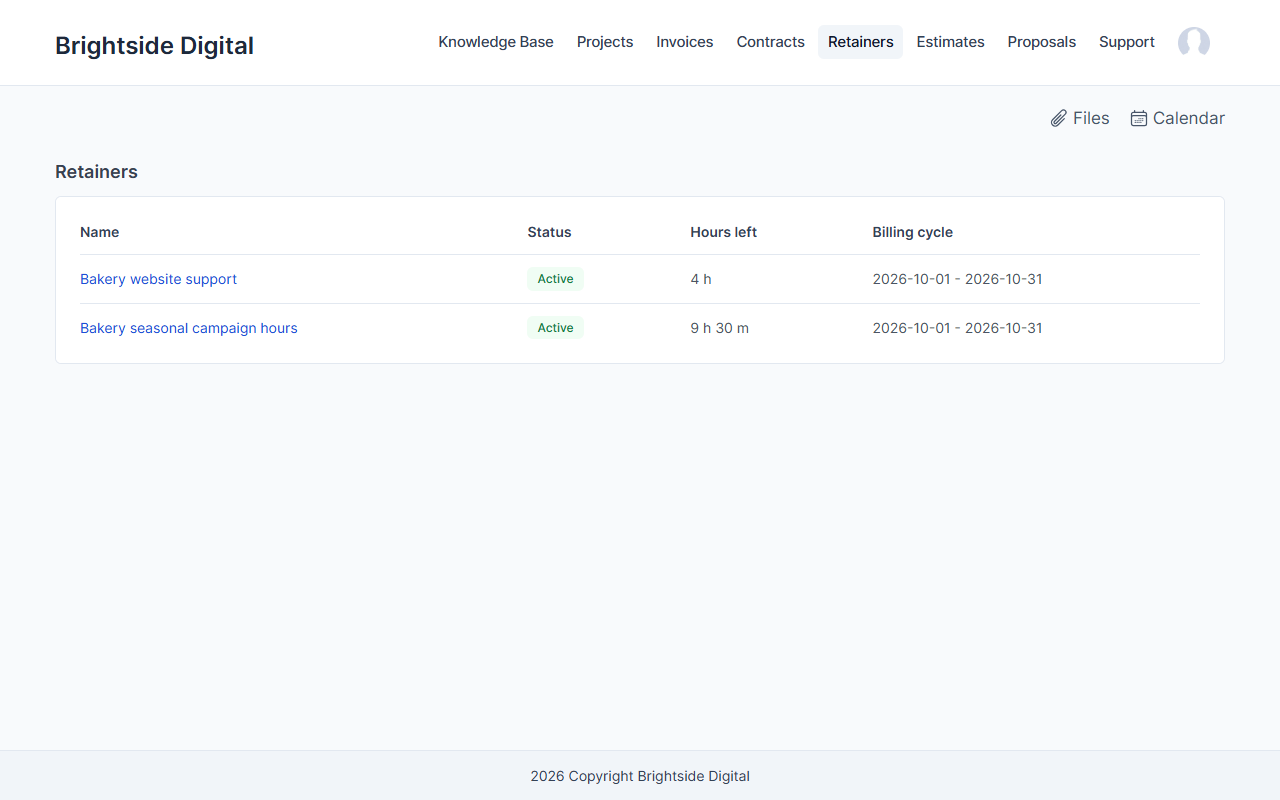
A client with one agreement sees it straight away. With several, they see a list with the hours left in each. A small hours left summary also appears on the client's home page.
One retainer
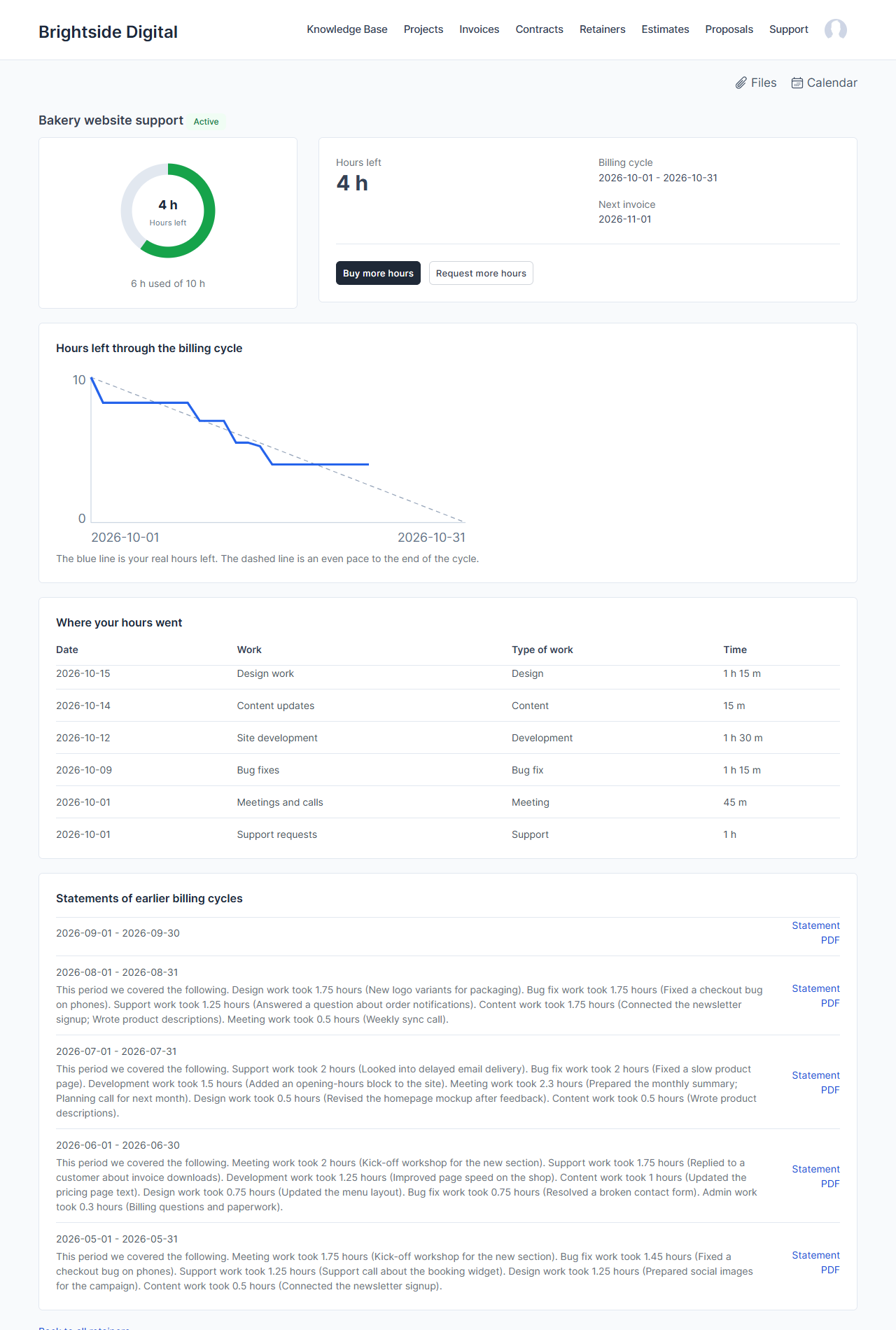
- Hours left as a gauge, with the billing cycle dates and the date of the next invoice.
- A burn-down chart of the hours left through the billing cycle, with an even-pace line to compare against.
- Where your hours went. The work done this cycle, with the date, the task name and the time, and the type of work when the AI work categories are switched on. Clients see task names, so give tasks names a client can read. Staff names are hidden unless you switch on Show staff names to clients in Settings.
- Carried and bought hours, and when they expire.
- Statements of earlier billing cycles as PDF downloads.
Buying more hours
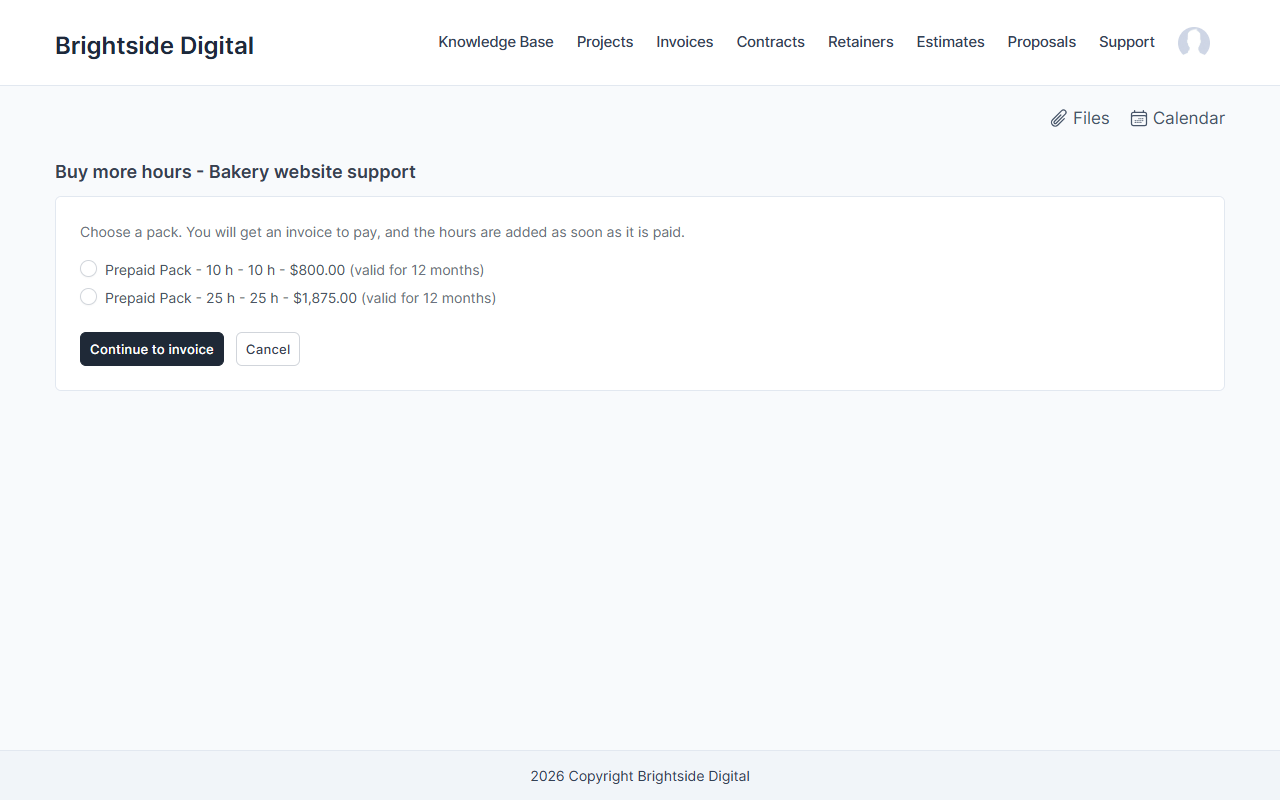
If you have packs that clients may buy, the retainer page shows a Buy more hours button. The client picks a pack, continues to the invoice and pays it with any payment method you have set up in Perfex. The hours are added as soon as the invoice is paid, or immediately after it is created if you chose that in Settings.
Requesting more hours
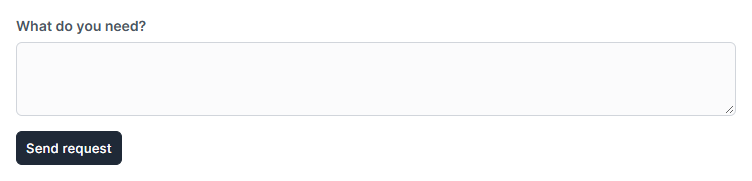
Clients who do not want a pack can send a short message with Request more hours. Staff see it under HourBank, Requests and in the notification bell, and can sell a pack from there with one click, or close the request.
The client statement
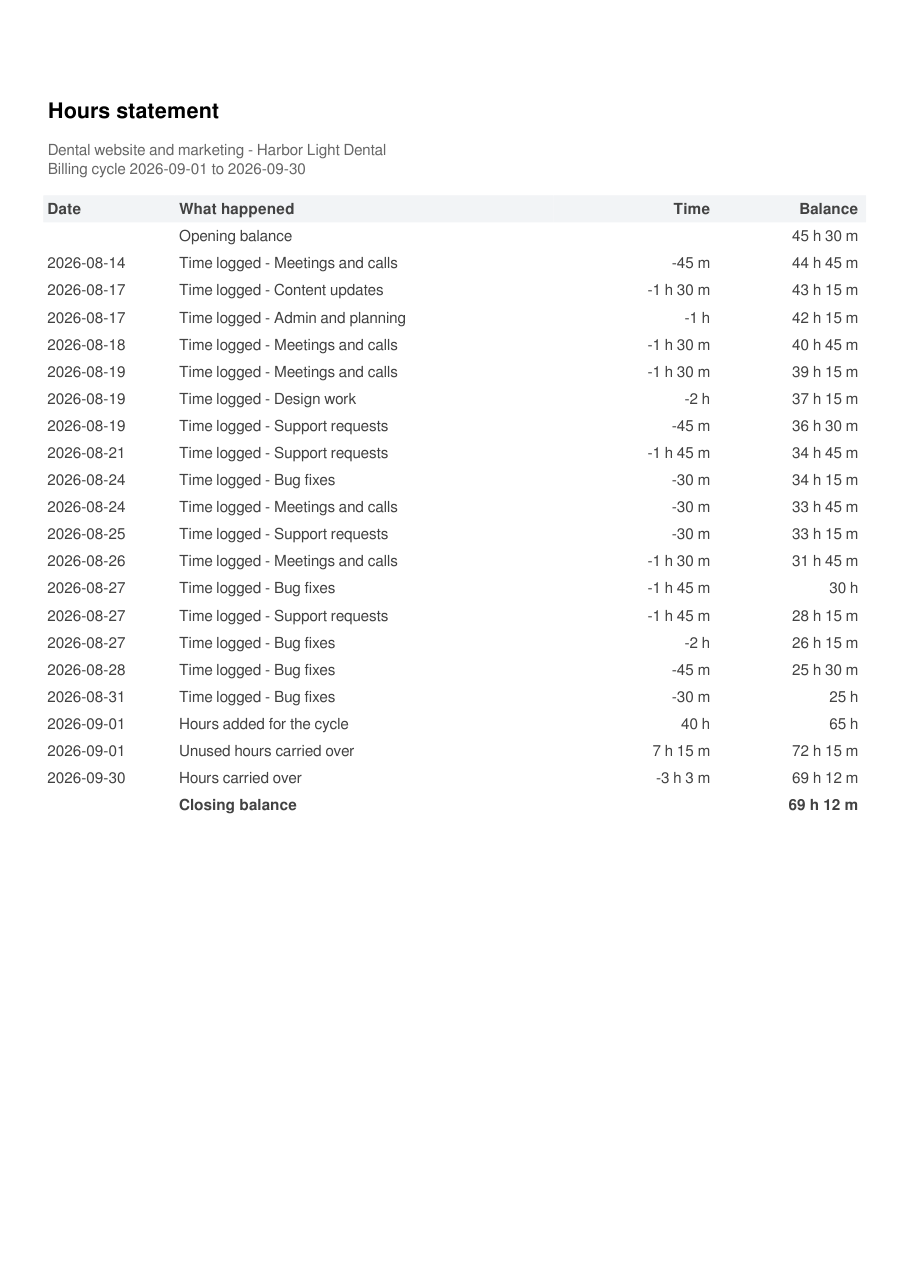
When a billing cycle ends, HourBank can email a PDF statement: the opening balance, the work, and the closing balance. Switch it on in Settings (for all agreements) and on each agreement. Clients can also download it from the portal.
Privacy and safety
A client can only ever see their own agreements, invoices and statements. Trying to open another client's page returns "not found". Staff-only notes and internal activity are never shown.
On a phone the pages stack into one column and the tables scroll sideways.