How hours are counted
HourBank does not ask your team to do anything new. Your team logs time on tasks the way they always have in Perfex: with the timer, or by adding a time entry by hand. HourBank reads those entries and takes the minutes off the right client's hours.
Which entries count
- The task belongs to a project, ticket or customer of the client.
- The client has a running agreement on the day the work started.
- The work is inside the agreement's scope, if you limited it to selected projects or tickets.
- The task is billable, unless you chose to count non-billable time.
- The person is not on the agreement's list of staff whose time is not counted.
How the minutes are worked out
- The length of the entry in minutes.
- Rounded up to the rounding you chose, for example 15 minutes.
- Raised to the minimum minutes, if you set one.
- Multiplied by the staff, weekend and after-hours multipliers, if you set them.
Example: with rounding of 15 minutes, a minimum of 15, a senior staff multiplier of 1.5 and a weekend multiplier of 2, a 10 minute entry on a Saturday by the senior specialist counts as 15 minutes, times 1.5, times 2. That is 45 minutes.
When it happens
- When someone stops a timer, the time is counted at once.
- When someone adds, edits or deletes a time entry by hand, Perfex does not tell other modules. HourBank therefore re-checks every entry of the last 60 days each time Perfex's scheduled task runs, normally every minute. A change is picked up within a few minutes, and the hours go back if an entry is deleted.
- You can press Sync hours now on the dashboard to do it immediately.
Counting is safe to repeat. Running it twice never counts anything twice.
Which hours are used first
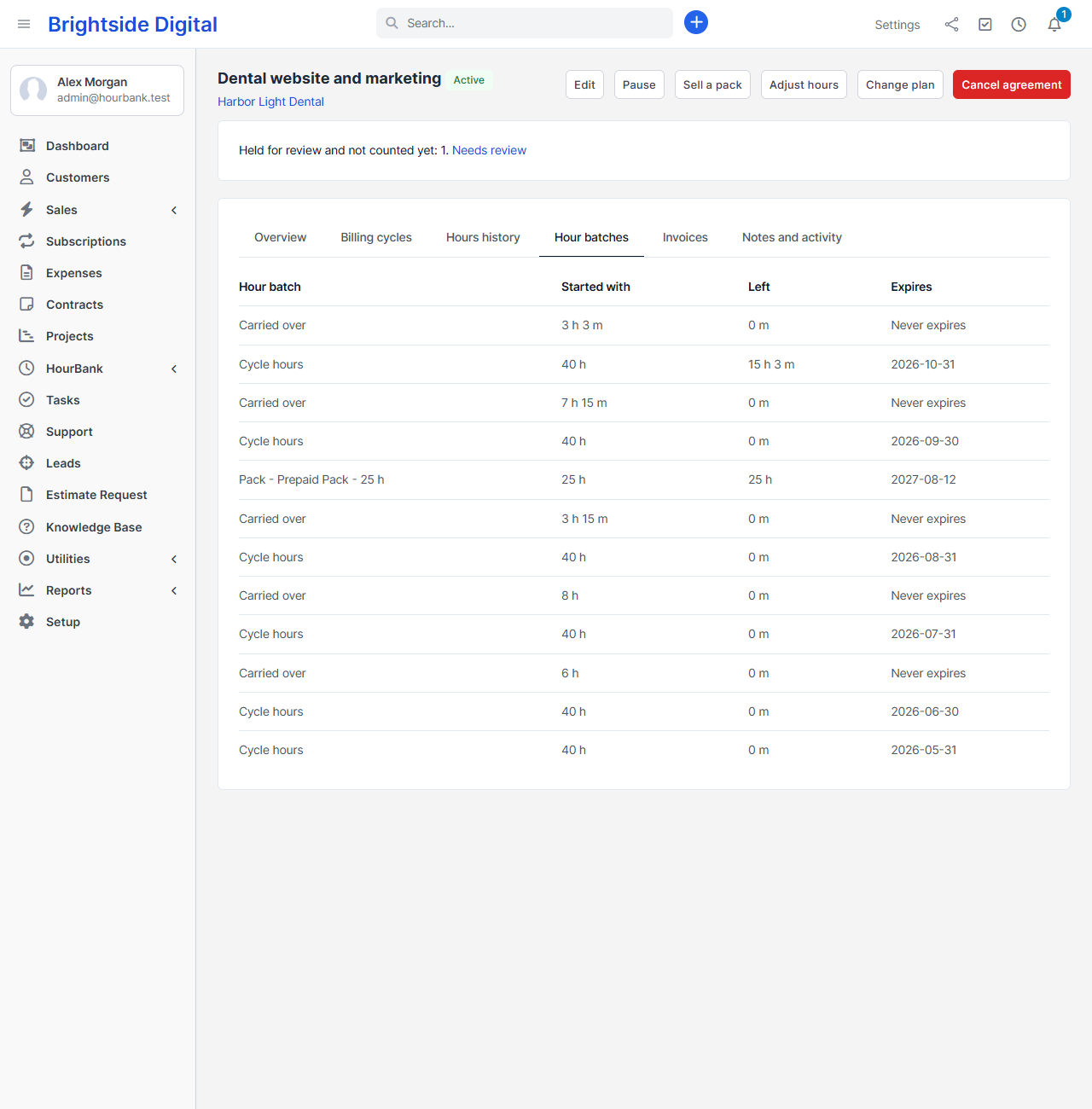
Hours live in hour batches. Each batch has an expiry date. Time is taken from the batch that expires soonest, and hours carried over or an opening balance are used before the current cycle's hours. Nothing is wasted that could have been used.
The hours history
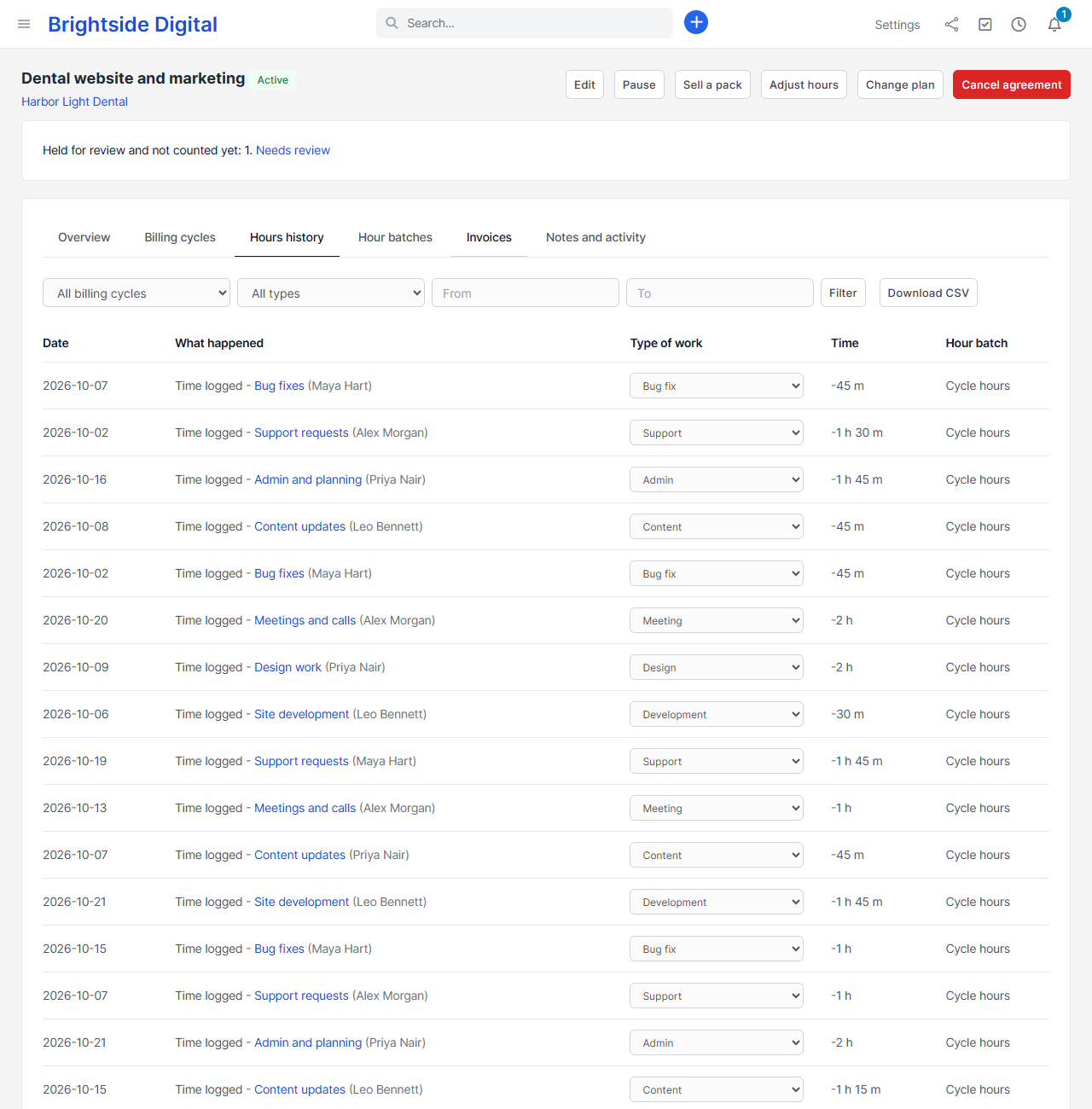
Every change to a client's hours is recorded in the Hours history tab and is never edited afterwards. If a time entry is changed or removed, a new line takes the hours back, so you can always see what happened. Staff with the Make manual adjustments to hours permission can also add or remove hours by hand, with a reason.
The history shows the latest 200 lines. Use the filters above the table to pick a billing cycle, a type of line (time logged, expired hours, pack hours and so on) or a date range, and Download CSV to take the filtered list into a spreadsheet.
Warnings on tasks and invoices
- On a task. A notice shows whether the time is covered by a retainer, partly covered, or not covered, and how many hours are left.
- Double billing. When all time on a task is covered by a retainer, HourBank marks the task not billable so Perfex does not offer it for invoicing again. If someone creates an invoice for time that a retainer already covered, a warning appears on the invoice and staff are notified. You can switch this protection off in Settings.