Assigning a retainer
An agreement gives one client a plan. Open HourBank, Agreements and click Add agreement. You can also add one from the Retainers tab on a customer's page.
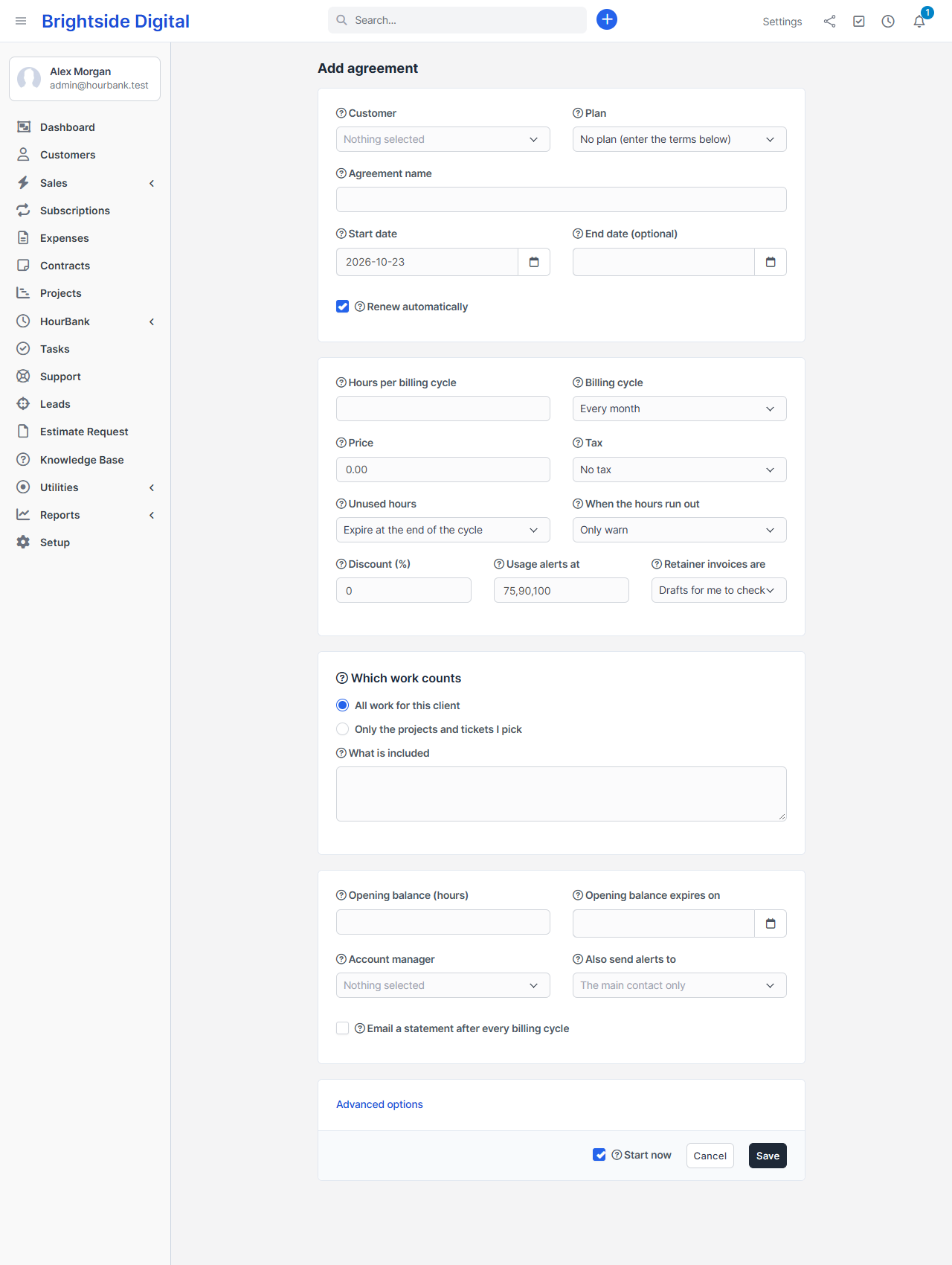
The basics
- Plan. Pick a plan to fill in the terms below. You can still change them for this client.
- Customer. The client who gets this retainer.
- Agreement name. Leave it empty to use the plan name and client name.
- Start date. The first billing cycle starts on this day. Later cycles start on the same day of the month.
- End date. Optional. Leave it empty for a retainer that goes on, and tick Renew automatically.
- Check the hours, price and rules, then click Save. With Start now ticked, the first billing cycle opens straight away. Without it, the agreement stays a draft and nothing is counted or invoiced until you start it.
A start date more than two years ago is refused. If you take over a retainer that has been running a long time, start it at the current billing period and enter what is left as an Opening balance. This stops HourBank from creating dozens of past invoices.
Which work counts
By default, All work for this client counts: every task in the client's projects and tickets. If you choose Only the projects and tickets I pick, only time on those counts.
A client can have more than one agreement. When time is logged, HourBank chooses where it goes:
- An agreement that lists the task's project or ticket in its own scope wins.
- Otherwise the running agreement that covers all work, the one that started first.
Opening balance
If the client already has hours when you start, enter them as Opening balance (hours). You can also choose a date the opening hours run out. These hours are used before the hours of the new cycle.
Advanced options
Click Advanced options to open the rarely needed settings.
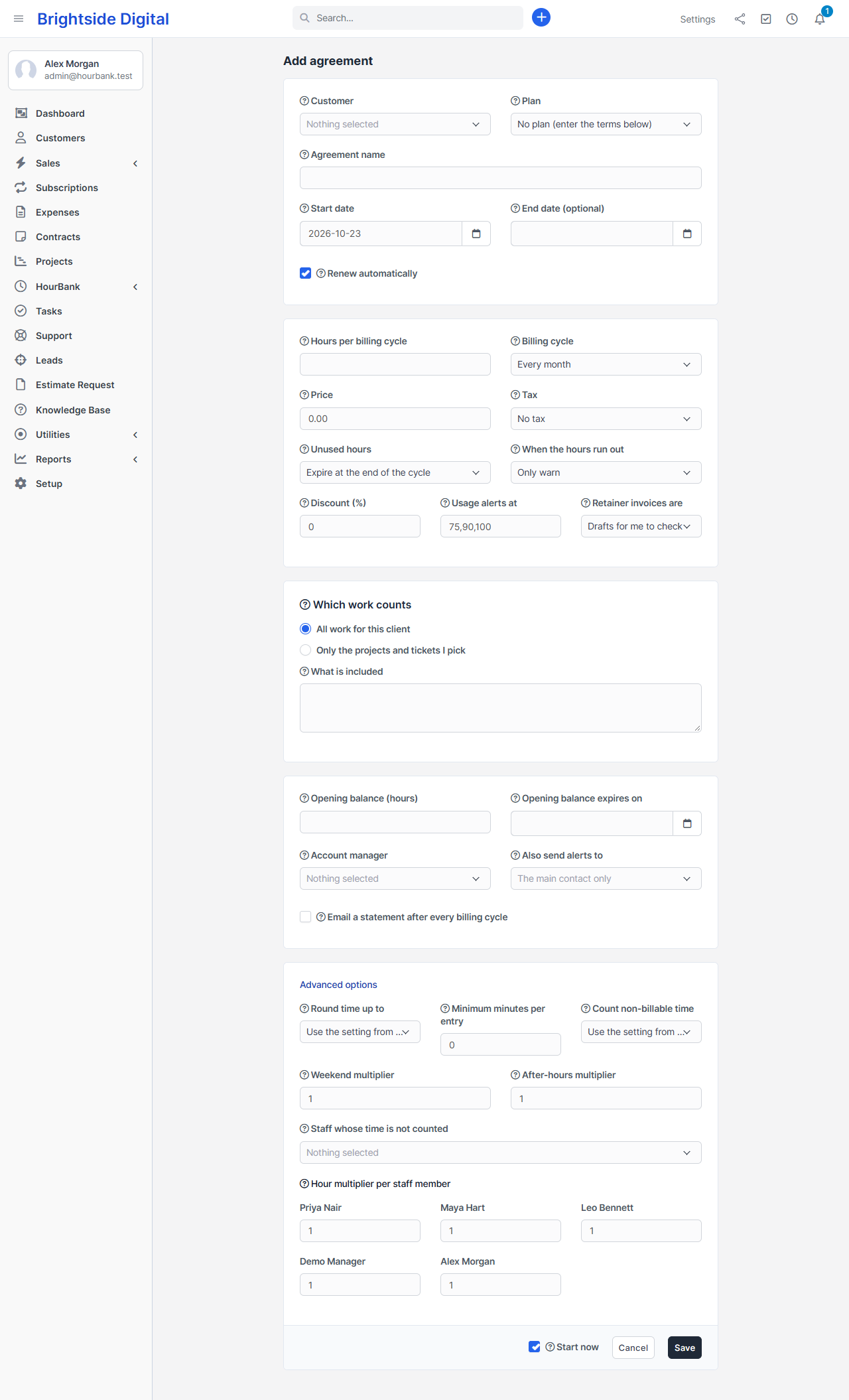
| Option | What it does |
|---|---|
| Round time up to | Overrides the default rounding for this client. |
| Minimum minutes per entry | Every time entry counts for at least this many minutes. |
| Weekend multiplier | Work started on a day that is not a working day counts this many times. 2 counts double. |
| After-hours multiplier | Work that starts outside working hours counts this many times. Working days and hours are in Settings. |
| Hour multiplier per staff member | Count a person's hours more or less than the clock, for example 1.5 for a senior specialist. |
| Staff whose time is not counted | Time logged by these people is never taken from the hours. |
| Account manager | Gets emails about the agreement and can see it with the View own permission. |
| Also send alerts to | Contacts who receive alerts and statements. The main contact is used when none is picked. |
| Email a statement after every billing cycle | Sends the client a PDF statement when each cycle ends. |
| Count non-billable time | Use the default, or choose yes or no for this client. |
The agreement page
Open an agreement to see everything about it.
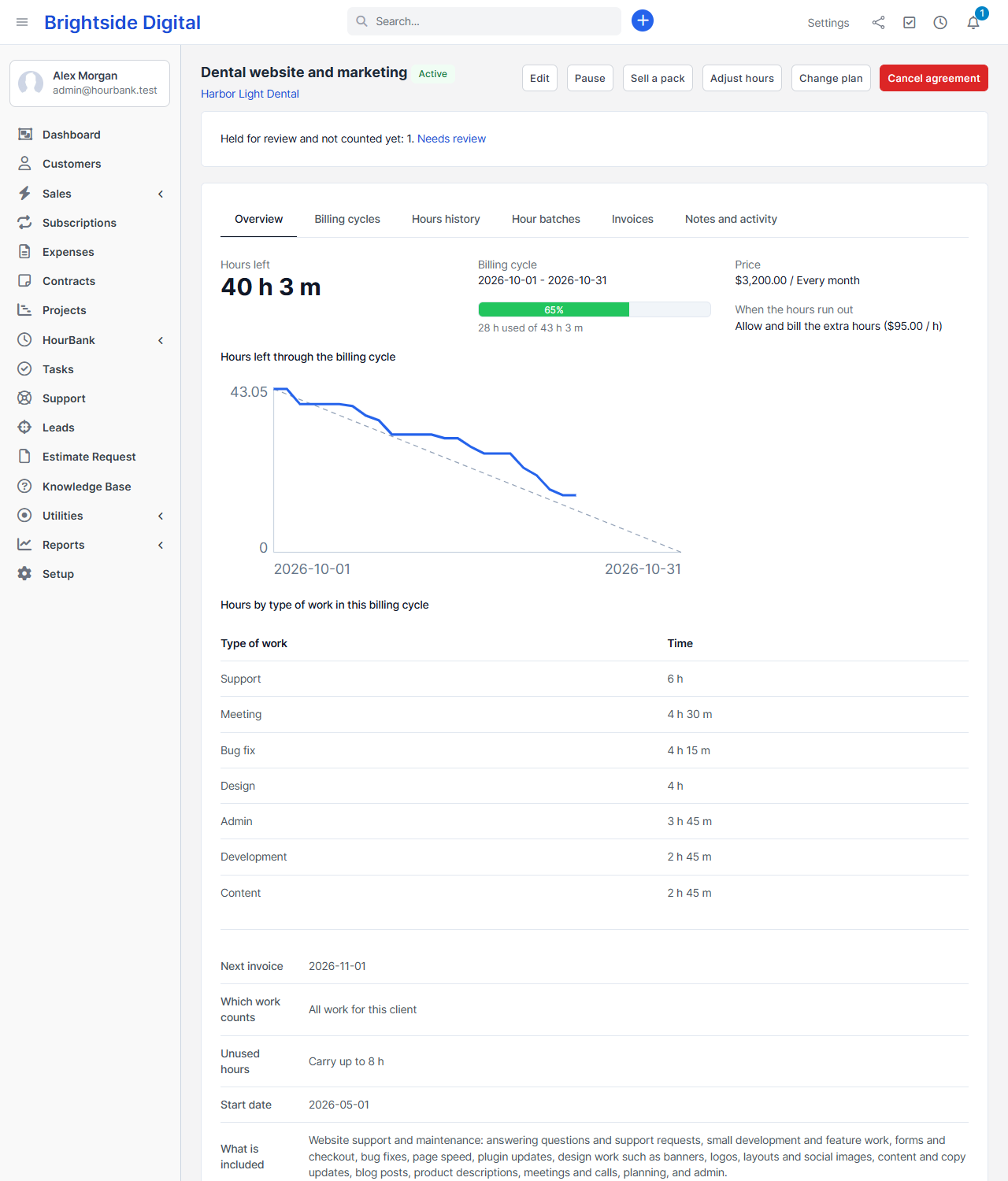
- Overview. Price, rules, hours left and a chart of how the hours are being used.
- Billing cycles. Every cycle, how many hours were added, carried in, used and expired.
- Hours history. Every time entry and every change to the hours, newest first.
- Hour batches. The groups of hours and when each expires.
- Invoices. The retainer, extra-hours and pack invoices this agreement created.
- Notes and activity. A timeline, and a place for notes your team can write.
The buttons at the top let you Edit, Pause (time logged while paused is not counted), Resume, Sell a pack, Adjust hours, Change plan and Cancel agreement. Cancelling expires the unused hours straight away and invoices extra hours used so far.
Adjusting hours by hand
Sometimes you want to give a client a goodwill credit, or take back hours that were counted by mistake. Click Adjust hours (you need the Make manual adjustments to hours permission). Type the hours to add, or put a minus sign in front to remove them, for example 2 or -1.5, and write a reason. The reason is required and shows in the hours history. Added hours can have an expiry date; without one they stay until used.
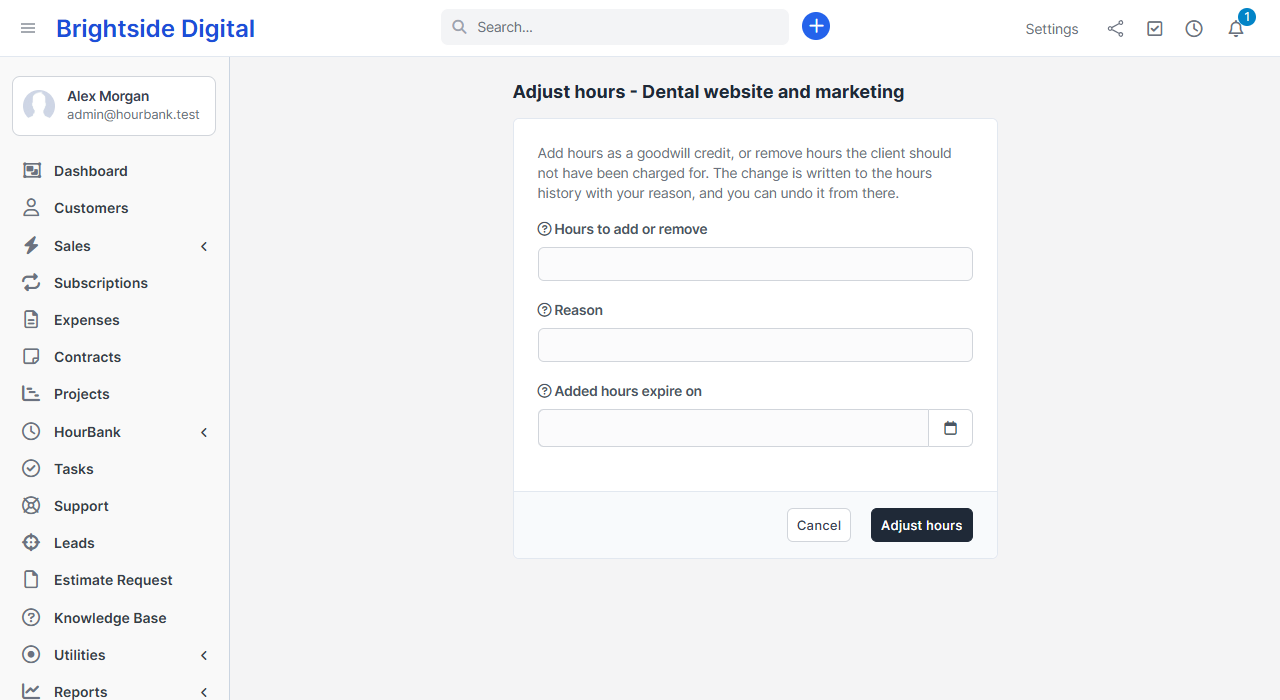
Nothing is ever deleted. To undo an adjustment, click Undo next to it in the hours history: a new line takes the hours back and the original stays visible, marked as undone. A credit can be taken back only as far as it is still unused.
Changing the plan
Use Change plan to move a client to another plan. Choose At the next billing cycle, or Right now for an upgrade. An upgrade right now adds the extra hours for the rest of the cycle and invoices the price difference for the days left. A downgrade always waits for the next cycle and is not refunded.